

How to Use All Your Monitors in a Remote Desktop (RDP) Session
Use all your monitors in a Remote Desktop session
By default, Remote Desktop opens on a single screen. One checkbox – or one command – stretches the remote session across every monitor on your desk.
mstsc /multimonBefore you start
| Item | Requirement |
|---|---|
| Your PC (client) | Windows 10 or 11, any edition, with Remote Desktop Connection (mstsc.exe) or the Windows App |
| Remote computer | Windows 10/11 Pro or Enterprise, or Windows Server 2012 R2 and later (Home editions can’t host RDP) |
| Maximum monitors | 16 per session by default |
| Session mode | Full screen – multi-monitor doesn’t work in a windowed session |
The “Use all my monitors” checkbox
- Press Win + R, type
mstscand press Enter. - Click Show Options at the bottom left.
- Open the Display tab.
- Tick Use all my monitors for the remote session.
- Make sure the size slider is set to Full Screen.
- On the General tab, enter the computer name and click Save As to keep these settings.
- Click Connect.
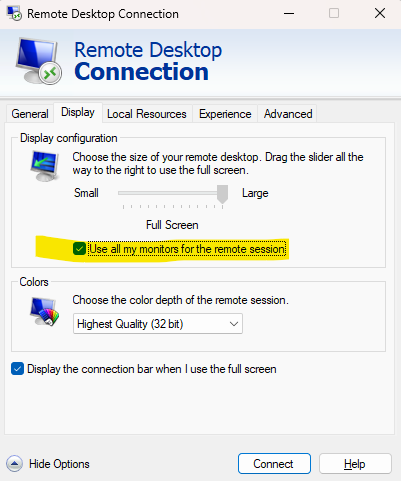
The remote desktop now opens across all your screens, and you can move and maximize windows on each monitor just like locally.
/multimon vs /span
Connect without opening the options window – run one of these from Win + R, CMD or PowerShell:
mstsc /v:server01.domain.local /multimon
mstsc /v:server01.domain.local /span
/multimon – recommended
Each local monitor becomes a separate monitor in the session. The taskbar and maximize work per screen, and different resolutions or portrait screens are fine.
/span
Merges all monitors into one huge desktop. Monitors must be the same height and side by side, and a maximized window stretches across every screen.
Use only some of your monitors
Have three screens but want RDP on two, keeping the third for local work? Use the selectedmonitors setting.
Step 1 – find your monitor IDs
mstsc /lA window lists every monitor with its ID, resolution and position (for example 0, 1, 2).
Step 2 – edit the .rdp file
Right-click your saved .rdp file, choose Open with → Notepad, and add or change these lines:
screen mode id:i:2
use multimon:i:1
selectedmonitors:s:0,1PowerShell script to create a multi-monitor RDP shortcut
Builds a ready .rdp file on the user’s desktop. Save it as New-MultiMonRdp.ps1.
<#
.SYNOPSIS
  Creates a full-screen, multi-monitor RDP file on the desktop.
.EXAMPLE
  .\New-MultiMonRdp.ps1 -Server rds01.contoso.local
  .\New-MultiMonRdp.ps1 -Server rds01.contoso.local -Monitors "0,1" -Name "Office RDS"
#>
param(
    [Parameter(Mandatory)][string]$Server,
    [string]$Monitors = "",          # empty = all monitors, e.g. "0,1" = only these
    [string]$Name     = "Remote Desktop",
    [string]$Gateway  = ""           # optional RD Gateway FQDN
)

$lines = @(
    "full address:s:$Server"
    "screen mode id:i:2"
    "use multimon:i:1"
    "span monitors:i:0"
    "session bpp:i:32"
    "smart sizing:i:0"
    "dynamic resolution:i:1"
    "redirectclipboard:i:1"
    "autoreconnection enabled:i:1"
)

if ($Monitors) { $lines += "selectedmonitors:s:$Monitors" }

if ($Gateway) {
    $lines += "gatewayhostname:s:$Gateway"
    $lines += "gatewayusagemethod:i:1"
    $lines += "gatewayprofileusagemethod:i:1"
}

$path = Join-Path ([Environment]::GetFolderPath('Desktop')) "$Name.rdp"
$lines | Set-Content -Path $path -Encoding Unicode
Write-Host "Created $path" -ForegroundColor Green
Run it once per user, or push it through a GPO logon script or Intune. Leave -Monitors empty to use every screen.
Other clients
Microsoft’s Windows App (which replaced the Microsoft Remote Desktop app) supports multiple monitors too.
- Mac: right-click the saved PC → Edit → Display → tick Use all monitors and Start session in full screen.
- Windows App on Windows: open the PC’s settings → Display configuration → choose All displays or Select displays.
Server-side limits (Group Policy)
If users tick the box but still get one screen, check the host’s policy in gpedit.msc or the GPMC:
Computer Configuration → Administrative Templates → Windows Components →
Remote Desktop Services → Remote Desktop Session Host → Remote Session Environment| Policy | What to set |
|---|---|
| Limit maximum number of monitors | Enabled, value 2–16 (default 16 when not configured) |
| Limit maximum display resolution | Raise it if users with 4K or ultrawide screens get scaled-down sessions |
| Use WDDM graphics display driver for Remote Desktop Connections | Leave enabled on Server 2016+ for best multi-monitor performance |
Apply with gpupdate /force and have users sign out and back in. On busy RDS farms, each extra high-resolution monitor adds CPU, RAM and bandwidth load per session.
Something not working?
| Problem | Fix |
|---|---|
| Session still opens on one screen | Confirm Full Screen is selected, and check the “Limit maximum number of monitors” policy on the host |
| Wrong monitor shows the taskbar | Put the desired monitor’s ID first in selectedmonitors:s: |
| Black or flickering screen on one monitor | Update the local graphics driver; on older hosts try disabling “Use WDDM graphics display driver” |
/span gives an error | Monitors must be the same height and side by side – use /multimon instead |
| Text looks blurry on 4K screens | Set dynamic resolution:i:1 and match Windows scaling on both sides |
| Settings ignored when opening from a portal | RD Web / RemoteApp feeds supply their own .rdp settings – change them on the collection with Set-RDSessionCollectionConfiguration -CustomRdpProperty |
Quick reference
| I want to… | Do this |
|---|---|
| Use all monitors (GUI) | mstsc → Show Options → Display → Use all my monitors |
| Use all monitors (command) | mstsc /v:SERVER /multimon |
| See monitor IDs | mstsc /l |
| Use only monitors 0 and 1 | selectedmonitors:s:0,1 in the .rdp file |
| Deploy to many users | Run the PowerShell script above via GPO or Intune |
| Raise the server limit | GPO: Limit maximum number of monitors |